• Home
  • App SwitchingRoom CalendarTouch RemoteScreen MirroringRoom ControlVCA CloudCost Savings
    All features
  • Download
  • Pricing
  • Help Center
  • Blog
  • Contact Us
Touch Remote

Control the meeting room Host from a tablet

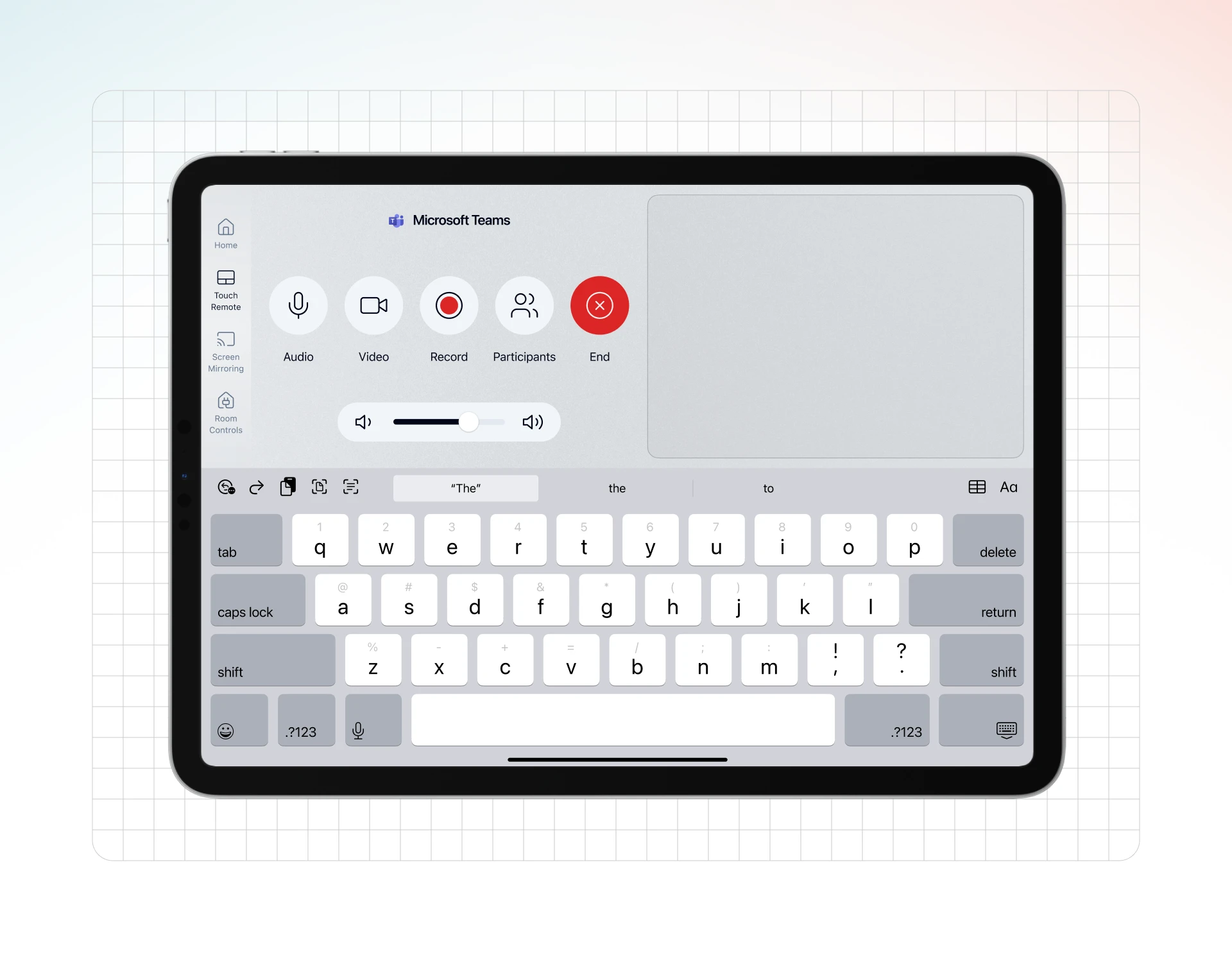
Touch Remote turns the Controller tablet into a touchpad, keyboard, and meeting operation surface for supported standard meeting applications.
Download ControllerCompare plans
Touch Remote touchpad and keyboard interface

What is Touch Remote?

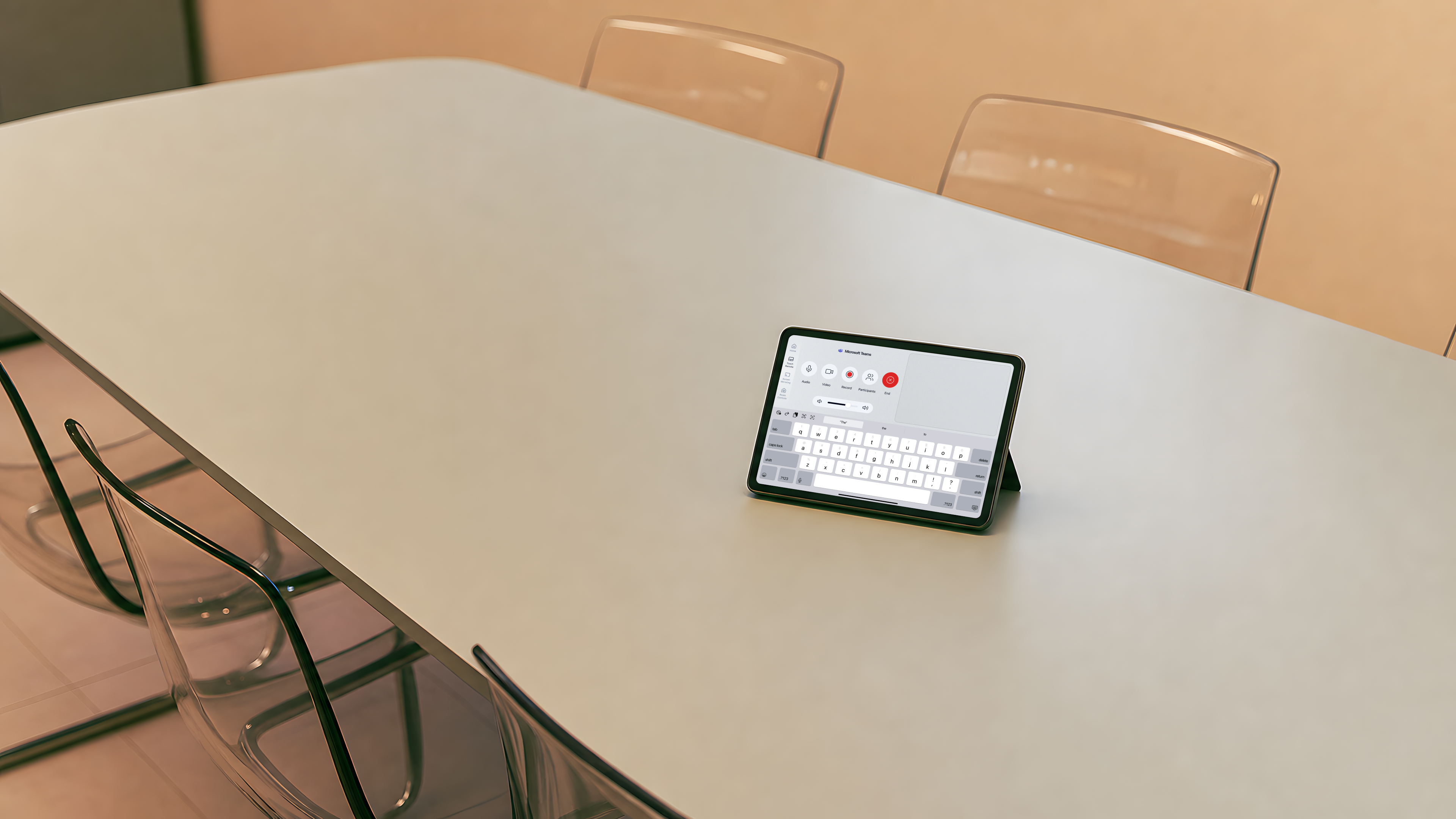
Touch Remote lets the Controller tablet operate the room Host without leaving a physical keyboard and mouse on the table. Users can move the pointer, type with a virtual keyboard, and use supported meeting controls for common actions in standard meeting apps. This keeps the room cleaner and makes occasional Host interaction available from the same tablet that launches and switches meeting software.
One system, seamlessly connecting all video conferencing platforms.

Features

  • All features
  • App Switching
  • Room Calendar
  • Touch Remote
  • Screen Mirroring
  • Room Control
  • VCA Cloud
  • Cost Savings

Download

  • Host
  • Controller

Legal

  • Terms of Service
  • Privacy Policy
  • Open Source License

Product

  • Changelog
  • Roadmap
  • Classic

Newsletter

By submitting, you agree to our Privacy Policy

vcaapp.com © All rights reserved.

京ICP备18058666号-7

DeepLaunchAI Toolz Dir

Made with ❤️ by VCA Team

Verify in product documentation
Touch Remote touchpad and keyboard interface

Room operation without table clutter

Touch Remote is valuable when a room still needs flexible computer control but users should not be expected to manage a desktop like an IT operator.

Virtual pointer and keyboard

The Controller can provide touchpad and keyboard input for the Host, reducing dependence on loose peripherals in shared rooms.

Meeting-oriented controls

For supported operating systems and meeting apps, VCA can expose meeting controls that are easier to use from a tablet.

Designed for the room workflow

Touch Remote sits beside app switching and calendar join actions, so users stay in the VCA Controller experience.

Compare options

How Touch Remote compares with keyboards and remote desktop

A physical keyboard and mouse are flexible, but they make shared rooms messy and invite accidental changes on the Host. Generic remote desktop tools are powerful for IT support, but they are usually not designed for in-room meeting operation. Touch Remote sits between those options: it gives meeting users enough control from the Controller tablet while keeping the experience tied to the room workflow.

Common approach
Who it suits
How VCA works
Physical keyboard and mouse
Occasional admin setup or rooms where desktop control is more important than a clean user experience.
VCA replaces routine keyboard and pointer access with a tablet touch remote, reducing room-table clutter.
Generic remote desktop tools
Remote IT troubleshooting, unattended maintenance, or full desktop administration.
VCA focuses on local room operation from the Controller, not broad remote admin sessions.
Official Rooms controller
A room dedicated to one native Rooms ecosystem with certified controller hardware.
VCA supports a multi-platform Host workflow and includes virtual keyboard and mouse behavior for flexible room operation.

Touch Remote usage flow

  1. 01

    Pair Controller with Host

    Connect the Controller tablet to the target room Host through the VCA pairing workflow.

  2. 02

    Open Touch Remote

    Use the tablet interface to access pointer, keyboard, and room operation controls.

  3. 03

    Operate the Host when needed

    Move the cursor, enter meeting details, or interact with dialogs without walking to the Host computer.

  4. 04

    Use supported meeting controls carefully

    Third-party meeting controls depend on app version, operating system support, and the documented compatibility matrix.

How third-party controls differ from native controls

Touch Remote always provides direct keyboard and pointer input. The convenience controls shown for a meeting app are best-effort shortcuts, not an official vendor controller.

Coverage varies by app and operating system

Mute, video, participants, join, leave, and other shortcuts are not available for every supported application.

Application updates can change shortcut behavior

Third-party meeting clients may alter keyboard shortcuts or external-control behavior after an update.

Virtual input remains the fallback

When a quick control is unavailable, use the touchpad and keyboard to operate the Host application directly.

Check current control coverage

Use these first-party references to confirm deployment details before making a room decision.

Touch Remote guide

Review the interface, virtual input gestures, and current third-party control table.

Installation and deployment

Prepare and pair the Host and Controller before using remote input.

System requirements

Confirm operating system and local-network requirements.

Related resources for tablet room control

Continue exploring VCA

Touch Remote docs

Review supported controls, interface areas, and operating system notes.

Multi-platform switching

Use Touch Remote alongside app switching for rooms that support several video clients.

Room Control

Expose smart-room scenes and Home Assistant controls from the room tablet.

Touch Remote FAQ

Concise answers to the questions teams ask before planning or deploying this capability.

Replace room-table peripherals with a tablet workflow

Use VCA Controller as the practical control surface for Host input and meeting operation.

Download ControllerCompare plans